
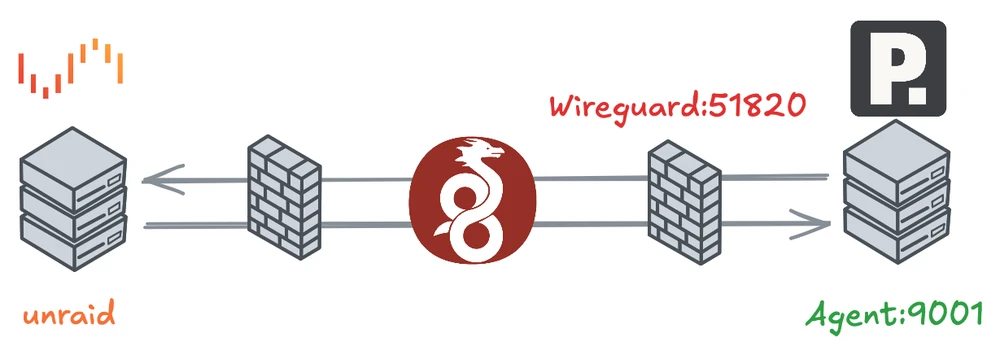
The agent runs on an external Linux host (for example, a VPS or dedicated server), while Portainer itself runs on the Unraid system.
All communication between the two systems occurs exclusively through an encrypted VPN tunnel.
Requirements#
- Linux server with Docker or Docker Compose
- Unraid server with Portainer (CE or BE)
- UDP port 51820 must be reachable from the outside
- Basic understanding of Docker and UFW
Docker Compose on the Server#
Create a file named docker-compose.yml on the target server with the following content:
services:
  wireguard:
    image: lscr.io/linuxserver/wireguard:latest
    container_name: wireguard
    restart: always
    network_mode: host
    cap_add:
      - NET_ADMIN
    environment:
      - PUID=1000
      - PGID=1000
      - TZ=Europe/Berlin
      - SERVERURL=<ip-of-server>
      - SERVERPORT=51820
      - PEERS=1
      - PEERDNS=auto
    volumes:
      - ./wireguard:/config
      - /lib/modules:/lib/modules

  portainer-agent:
    image: portainer/agent:latest
    container_name: portainer-agent
    restart: always
    network_mode: host
    volumes:
      - /var/run/docker.sock:/var/run/docker.sock
      - /var/lib/docker/volumes:/var/lib/docker/volumes
- /:/hostEnsure the path /lib/modules is correct (not /lib/nodules).
Set SERVERURL to your public IP or DNS hostname.
Increase PEERS if you plan to connect multiple clients.
Start the containers:
docker compose up -dPrevent Docker from Modifying iptables Automatically#
By default, Docker modifies iptables rules and opens ports automatically when containers start. This can result in containers being accessible from the public network even if UFW is active. To retain full control over firewall rules, disable this behavior.
Create or edit the Docker daemon configuration file /etc/docker/daemon.json:
sudo mkdir -p /etc/docker
sudo nano /etc/docker/daemon.json
Add the following content:
{
  "iptables": false
}
Restart Docker:
sudo systemctl restart dockerVerify:
docker info | grep IPTablesExpected output:
IPTables: falseFrom now on, Docker will no longer modify iptables automatically. All firewall rules must be managed manually, which in this setup is handled entirely through UFW.
Firewall Configuration (UFW)#
WireGuard and the Portainer Agent require specific ports to be accessible. Allow only the necessary ports and interfaces:
sudo ufw allow 51820/udp
sudo ufw allow in on wg0 to any port 9001 proto tcp
sudo ufw deny in on docker0 from any to any
sudo ufw reload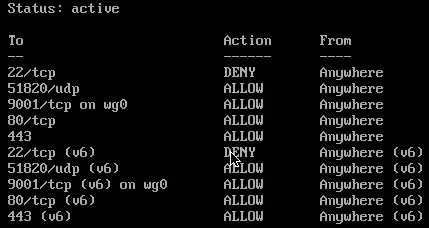
With these rules, the Portainer Agent is reachable only through the VPN interface (wg0), not via the public network interface (eth0).
The docker0 bridge is explicitly blocked to isolate non-host-networked containers from external access.
Check the active rules:
sudo ufw status verboseSetting Up the WireGuard Client on Unraid#
After starting the WireGuard container on the server, a client configuration file is generated in the mounted directory, for example:
./wireguard/peer1/peer1.confThis file contains the client’s private key and network parameters. Copy the file to your Unraid system and import it via:
Settings → VPN Manager → Add Tunnel → Import tunnel from file
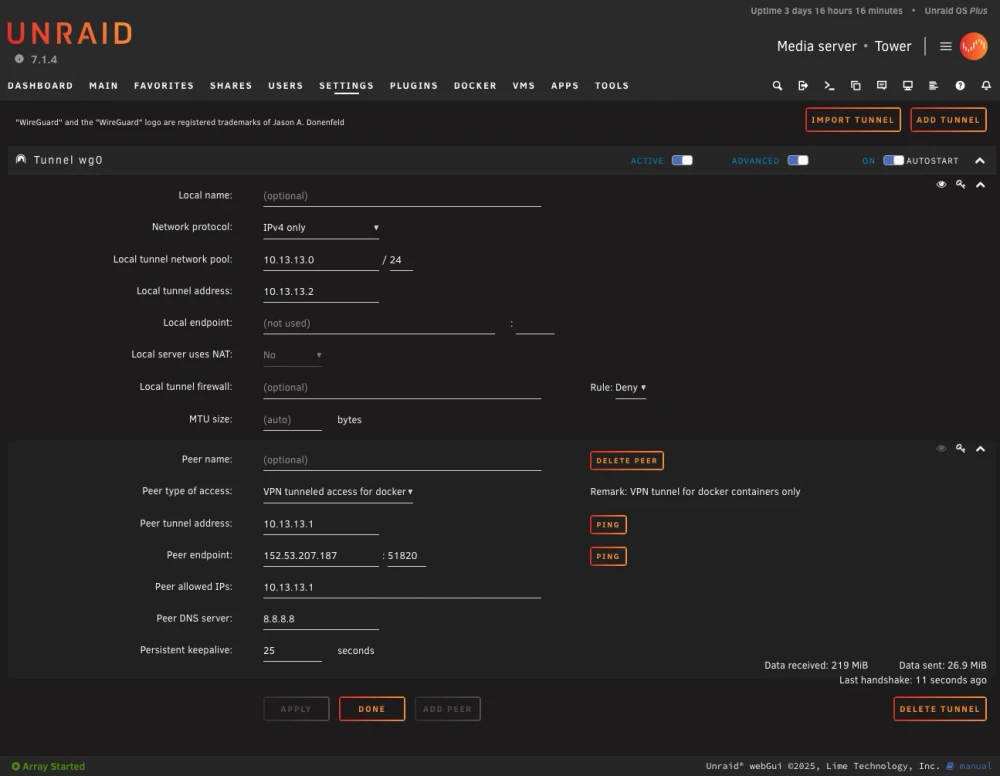
Once imported, activate the connection and verify that it’s up:
wg showExample output:
peer: <PublicKey>
endpoint: <server-ip>:51820
allowed ips: 10.13.13.0/24
latest handshake: 10 seconds ago
transfer: 12.1 KiB received, 8.4 KiB sent
If the connection does not establish, verify your firewall, ports, and container logs.
Once the VPN connection is active, the Portainer Agent can be reached through its WireGuard IP.
By default, the LinuxServer.io WireGuard image uses the subnet 10.13.13.0/24, where the server usually takes the address 10.13.13.1.
Connecting to the Portainer Agent#
In Portainer (on Unraid):
Go to Environments → Add Environment → Agent
Enter the Agent Address:
10.13.13.1:9001Save and test the connection.
If successful, the new remote agent should appear in the environment list.