
In the world of self-hosting, ensuring that your data is backed up regularly is crucial. One effective way to automate this process is by using GoCron, a self-hosted cron job scheduler. In this blog post, we will explore how to set up GoCron to automate the backup of your self-hosted services.
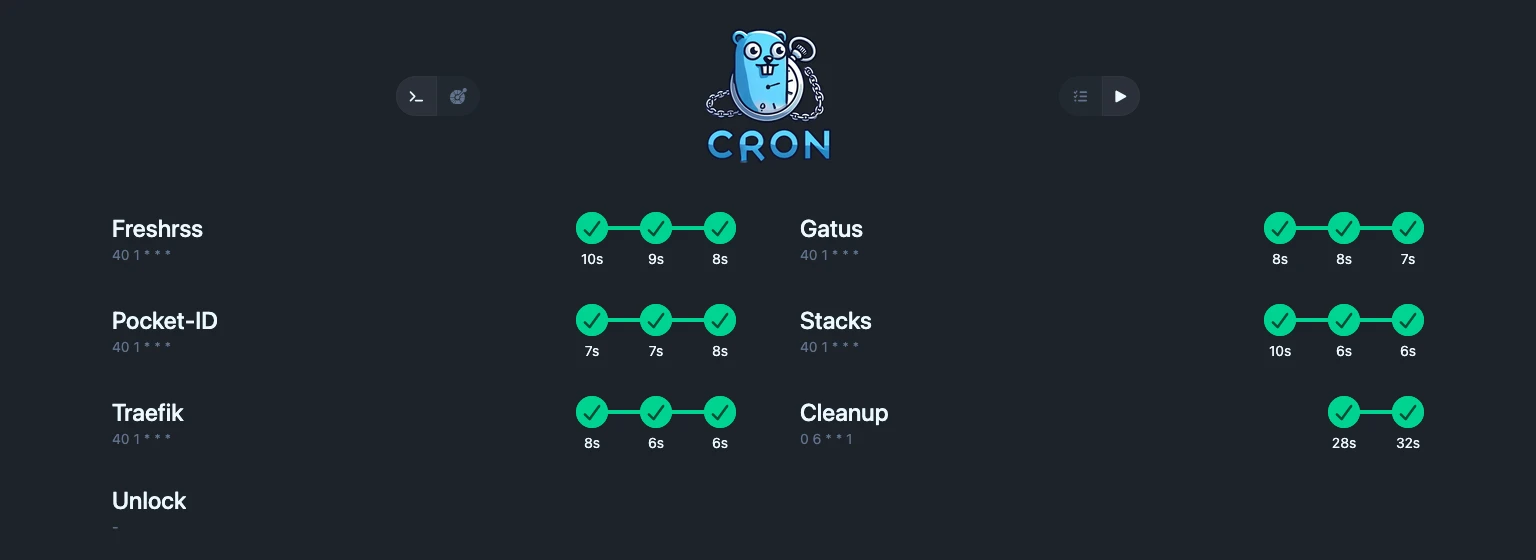
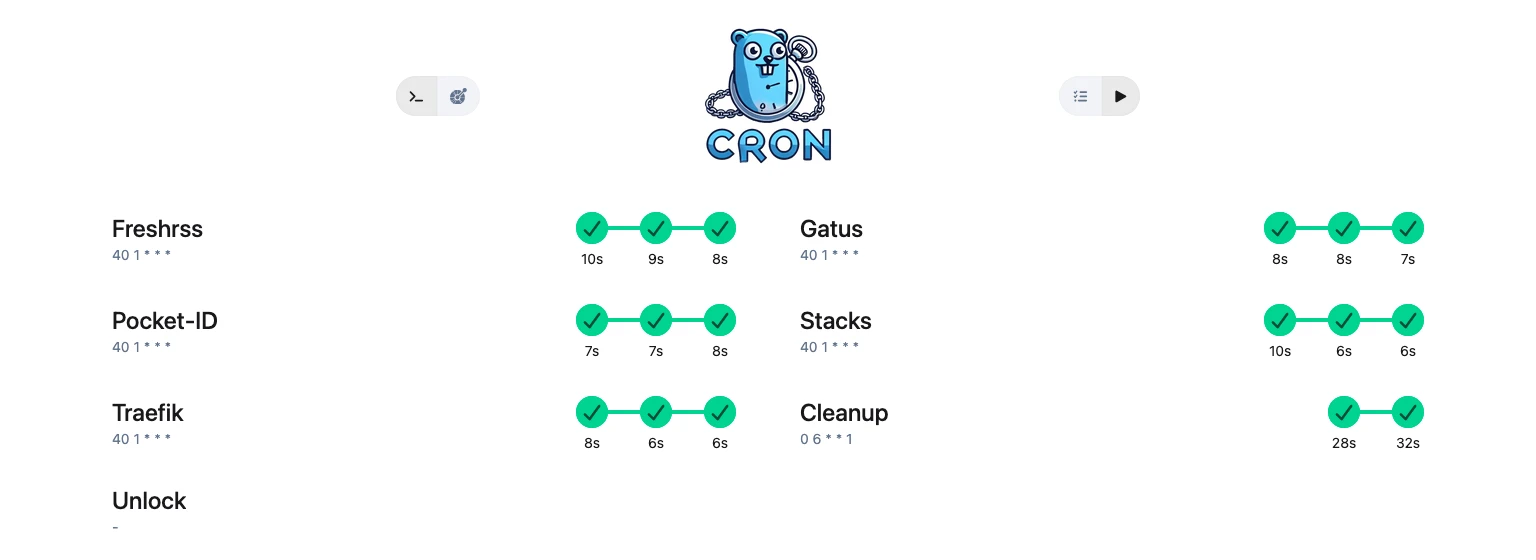
I am a little bit biased as I am the creator of GoCron. Nevertheless, I will try to provide an objective overview of the tool and its capabilities.
What is GoCron?#
GoCron is a simple and efficient cron job scheduler written in Go.
It allows you to schedule and manage cron jobs in a self-hosted environment, making it an ideal choice for automating tasks such as backups. Jobs can be defined using a yaml configuration file, and GoCron provides a web interface for monitoring and manually triggering your scheduled tasks.
How should a Backup Job Look Like?#
3-2-1-Backup-Rule
Keep at least three copies of your data, store two backup copies on different storage media, and keep one backup copy offsite.
When self-hosting, you are responsible for your data, and it is crucial to have a reliable backup strategy in place. All my services are running in Docker containers. This means I normally have a Database Container and a Service Container. On top of that, some data is stored in folders on the host machine, for example, media files or configuration files.
Backups should therefore include the following steps:
- Create a backup of the Database Container, for example, by using
docker execto run a database dump command. - Create a backup of the data folders on the host machine, for example, by using
tarto archive the relevant directories or skip this step if the data is transferred to the backup location directly. - Copy the backup files to a secure location, such as an external hard drive or a cloud storage service (Optionally encrypt the backup files for added security).
Using Restic and Rclone#
In the past couple of years, I have been using Restic and Rclone for my backup needs. Restic is a fast and efficient backup tool that supports various backends. In combination with Rclone, which is a command-line program to manage files on cloud storage, I can easily automate the backup process to various cloud storage providers (Personally I am using pCloud with a lifetime plan (Affiliate Link)).
When using Restic, the backups are encrypted by default, which adds an extra layer of security to your data. Also the incremental backup feature of Restic allows you to save storage space and reduce backup time by only backing up the changes since the last backup. Snapshots allow you to easily manage and restore previous versions of your data at any given time.
Setting Up GoCron#
To set up GoCron for automating your backup tasks, you can use the following Docker command to run the GoCron container. The extra mounts are for the configuration file, the Restic password file, and the Rclone config file, which are necessary for the backup jobs to function properly if you are using Restic and Rclone in your backup process. You can replace the mounts with your own configuration and secrets as needed.
docker run \
  --name gocron \
  --hostname gocron \
  -p 8156:8156 \
  -v ./config/:/app/config/ \
  -v ./.resticpwd:/secrets/.resticpwd \
  -v ./.rclone.conf:/root/.config/rclone/rclone.conf \
  -v /var/run/docker.sock:/var/run/docker.sock \
  ghcr.io/flohoss/gocron:latest
Alternatively, you can use the following docker-compose.yml file:
services:
  gocron:
    image: ghcr.io/flohoss/gocron:latest
    restart: always
    container_name: gocron
    hostname: gocron
    volumes:
      - ./config/:/app/config/
      - ./.resticpwd:/secrets/.resticpwd
      - ./.rclone.conf:/root/.config/rclone/rclone.conf
      - /var/run/docker.sock:/var/run/docker.sock
    ports:
      - '8156:8156'
The Docker socket mount is required for the example jobs in this post because they call docker ps and docker exec from inside the GoCron container.
By default, gocron reads ./config/config.yaml and create a default configuration file if it doesn’t exist.
The example config file gives you a good starting point to define your backup jobs.
The terminal.allowed_commands and software settings shown below are only needed when you want to run docker, restic, or rclone commands manually for debugging.
Setting up a Backup Job#
To set up a backup job for the very popular Immich application in GoCron, you can define a job in the config.yaml file as follows:
<...>
terminal:
  allowed_commands:
    restic:
      allow_all_args: true
    rclone:
      allow_all_args: true
    docker:
      args:
        - ps

software:
  - name: 'docker'
  - name: 'git'
  - name: 'rclone'
  - name: 'restic'

job_defaults:
  cron: '30 1 * * *'
  envs:
    - key: RESTIC_HOST
      value: 'gocron'
    - key: RESTIC_PASSWORD_FILE
      value: '/secrets/.resticpwd'
    - key: RCLONE_PCLOUD
      value: 'pcloud:Server/Backups'
    - key: BASE_REPOSITORY
      value: 'rclone:${RCLONE_PCLOUD}'
    - key: APPDATA_PATH
      value: '/opt/docker'
    - key: REPOSITORIES
      value: 'immich'

jobs:
  - name: Immich
    envs:
      - key: RESTIC_REPOSITORY
        value: ${BASE_REPOSITORY}/immich
      - key: LOCAL_PATH
        value: '/opt/docker/immich'
    commands:
      - restic cat config >/dev/null 2>&1 || restic init
      - docker exec -t $(docker ps --filter "label=backup.target=immich" --format "{{.Names}}" | head -n1) pg_dumpall --clean --if-exists --username=user | gzip > "${LOCAL_PATH}/.dbBackup.sql.gz"
      - chmod 600 ${LOCAL_PATH}/.dbBackup.sql.gz
      - restic backup ${LOCAL_PATH}

  - name: Cleanup
    cron: '0 6 * * 6'
    envs:
      - key: RESTIC_POLICY
        value: '--keep-daily 7 --keep-weekly 5 --keep-monthly 12 --keep-yearly 75'
    commands:
      - for repo in ${REPOSITORIES}; do restic -r ${BASE_REPOSITORY}/$repo forget ${RESTIC_POLICY} --prune; done
<...>
For this to work, you need to have a running Immich instance with a database container that has the label backup.target=immich and a volume mounted at /opt/docker/immich on the host machine.
You also need to ensure that all data you want to keep is available under ${LOCAL_PATH}, because the final restic backup command only captures that path and whatever artifacts, such as the database dump, are written into it.
Let’s walk through the job definition:
- The
cronfield defines the schedule for the job, in this case, it is set to run every day at 1:30 AM. - The
envsfield defines environment variables that will be available to the commands when they are executed. In this example, we set up environment variables for Restic and Rclone configuration, as well as the path to the Immich data on the host machine. - The
commandsfield defines the list of commands that will be executed when the job runs.- In this example, we first check if the Restic repository is initialized and initialize it if it is not.
- Then we create a backup of the Immich database by running a
pg_dumpallcommand inside the database container and saving the output to a file on the host machine. - Finally, we set the appropriate permissions for the backup file and use Restic to back up the file to the configured repository.
- The
Cleanupjob is a separate retention job that regularly prunes old snapshots so your backup repository does not grow without bounds.
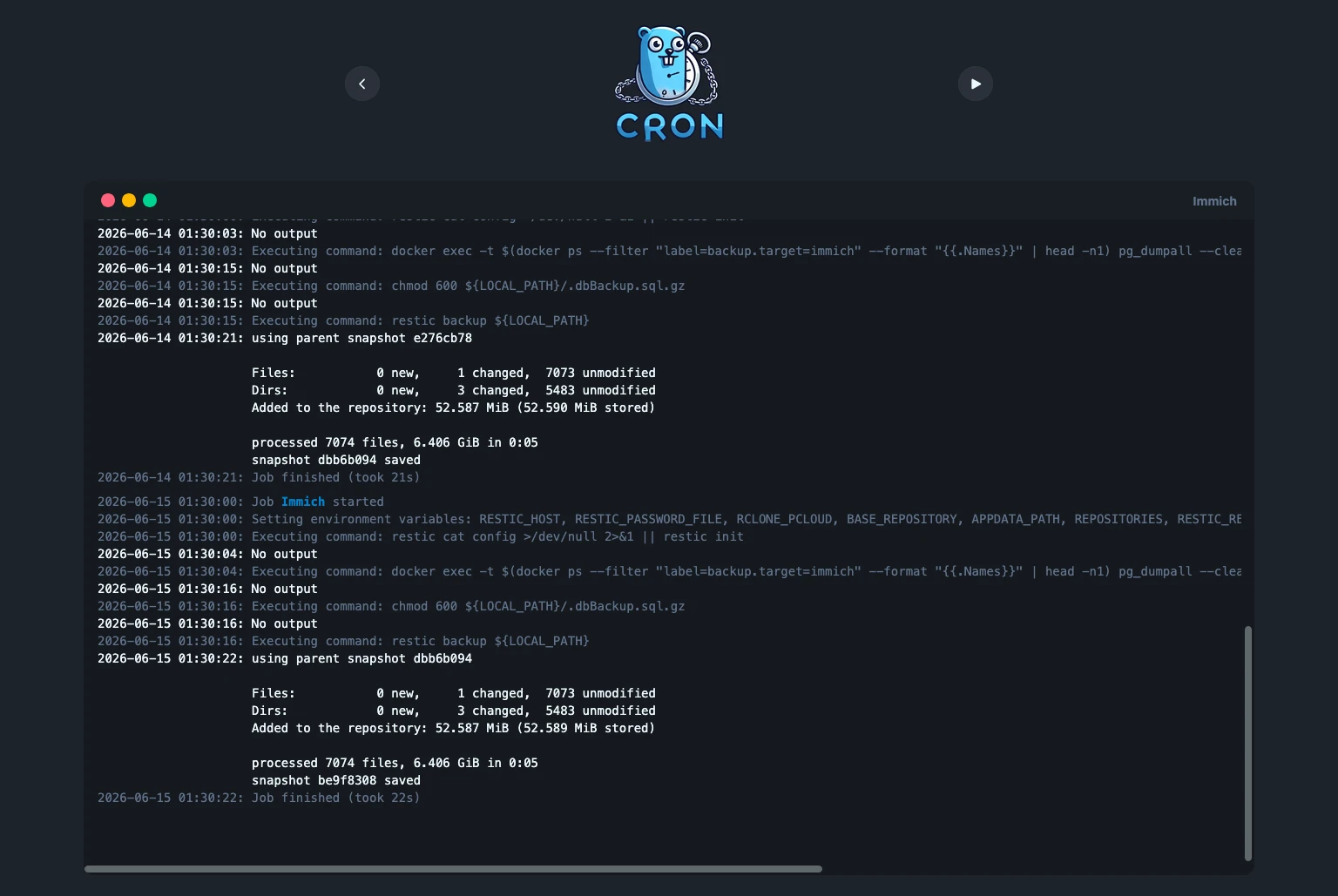
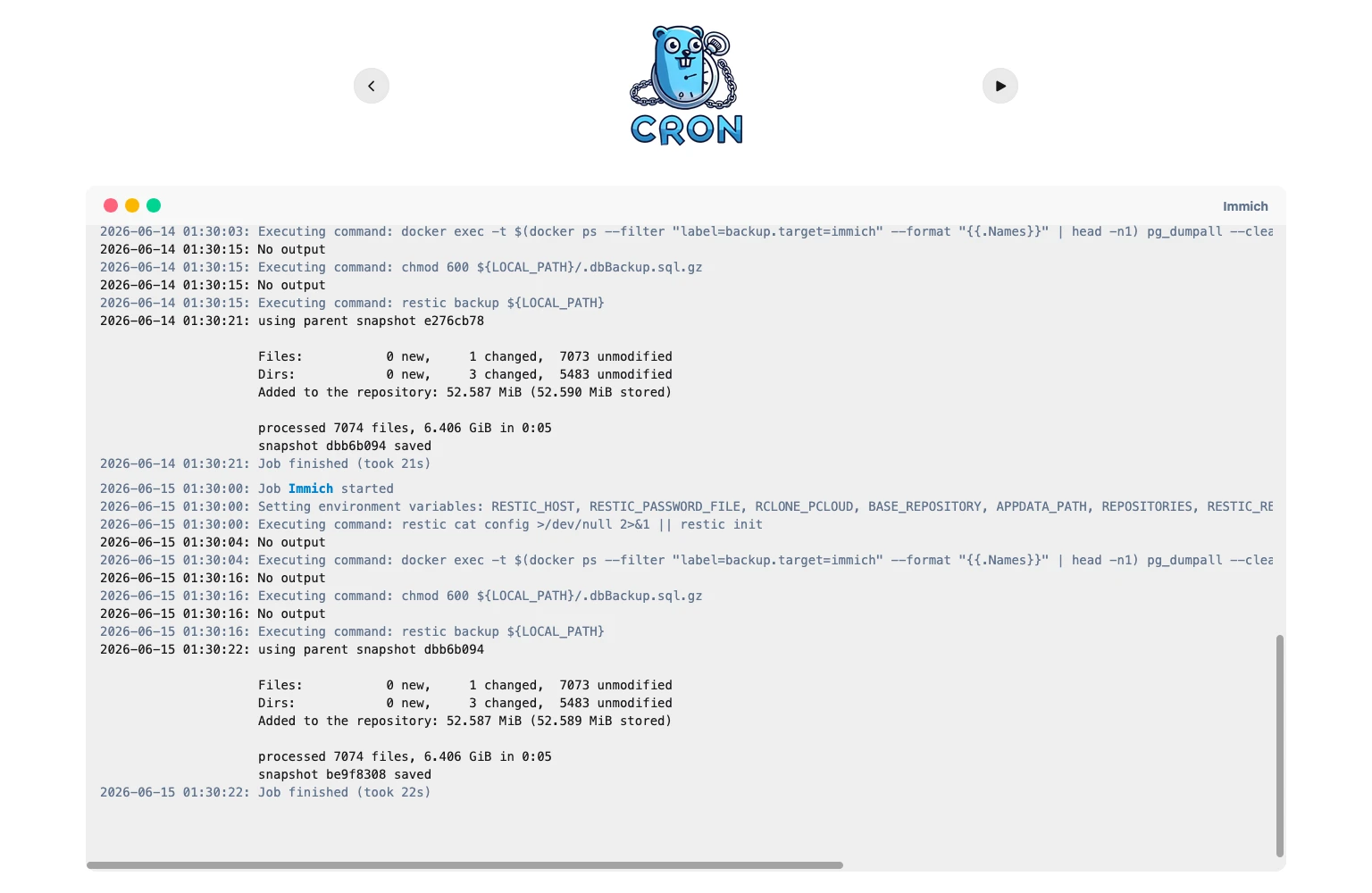
This is just a basic example, and you can customize the commands and environment variables as needed for your specific backup requirements. Whatever workflow you choose, make sure you regularly test restoring both the database dump and the backed-up files, not just the backup run itself.
Health Checks and Notifications#
GoCron provides built-in support for health checks and notifications, which can be useful for monitoring the status of your backup jobs. You can configure health checks to run after each job execution to ensure that the backup process completed successfully.
<...>
healthcheck:
  authorization: Bearer ...
  type: 'POST'
  start:
    url: https://status.example.com/api/v1/endpoints/backups_example/external
    params:
      success: true
  failure:
    url: https://status.example.com/api/v1/endpoints/backups_example/external
    params:
      success: false
      error: 'MegaByte Backup failed'
<...>
I am using Gatus for monitoring the health of my backup jobs. There, you can configure an external endpoint with heartbeat for each backup job and set up notifications to be sent to your preferred channels (e.g., email, Slack, etc.) if a backup job fails or a heartbeat is missed. Example configuration for the external endpoint in Gatus (Expecting a heartbeat every 24 hours, which is the schedule of the backup job defined above):
external-endpoints:
  - name: 'example'
    heartbeat:
      interval: 24h
    group: Backups
    token: '...'
    alerts:
      - type: ntfy
        failure-threshold: 1
        send-on-resolved: false
Best Practices and Security Considerations#
This post is focused on one practical backup workflow, not on providing a full security or production-readiness review of GoCron.
Because GoCron executes shell commands on a schedule, you should treat every job as trusted automation and review the effective permissions, working directories, mounted secrets, logging behavior, timeouts, and failure handling before using it in production.
The terminal.allowed_commands example above is intentionally permissive to make interactive debugging easier. In production, you should narrow command permissions wherever possible instead of defaulting to allow_all_args: true for every tool.
Do not expose the GoCron web interface to the public internet without proper authentication and encryption, as it could allow unauthorized access to your scheduled jobs and sensitive data.